
Search Docs by Keyword
SPINAL Usage Guide for Laboratory Administrators
SPINAL (Scheduling and Payment for INstruments and Laboratories) is an online scheduling and billing system managed by the FAS Informatics group for scientific instruments in FAS. SPINAL requires researchers to request 33-digit codes from their lab admins before making reservations. This makes sure that the right codes are used for the right purposes. Lab admins also enter an expiration date for each code, to avoid billing complications.
This document gives a brief overview of SPINAL from a lab admin’s perspective. The process works as follows:
A researcher reserving an instrument for the first time requests an expense code. The researcher designates a lab admin.
The lab admin gets a notification email with a link. Clicking on that link takes them to the SPINAL website.
The lab admin logs in with their Research Computing ID and password.
For each pending request, the lab admin specifies a 33-digit code, or rejects the request
That’s it! We have attempted to keep the system simple and quick to use for researchers and admins.
Note that you will only need to approve a code once for each researcher for each instrument. You will not need to approve the code each time the user uses the instrument (unless the expiration date you entered for the code has passed).
Contact spinal@rc.fas.harvard.edu with any questions about the system, or to report anything that doesn’t work.
Logging in
When you go to the site, you will need to log in with your Research Computing (RC) ID, which might or might not be the one you use to log in to your desktop computer. If you do not have an RC account, go to: https://portal.rc.fas.harvard.edu/request/account/new to request one. As of June, 2011, all people have the same domain, so you should not need to change the “RC” in the domain menu.
If you get an email from the SPINAL system about a user request, it will include a link to the SPINAL system. After logging in, you will be taken directly to that request. Alternatively, you can just browse to http://webapps.sciences.fas.harvard.edu/spinal. In that case, you will see all of your pending requests near the top of the screen. Click on a request to go to the next screen.
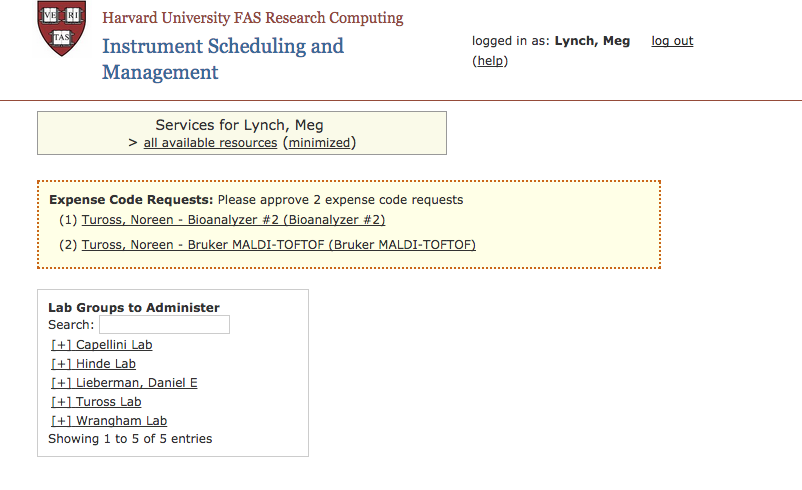
Handling 33-digit Code Requests
There are three ways to enter codes: selecting from a list; typing a full code; or filling in tub, root, org., etc. You may also reject a request. Use the lettered tabs on the page to choose between these different actions.
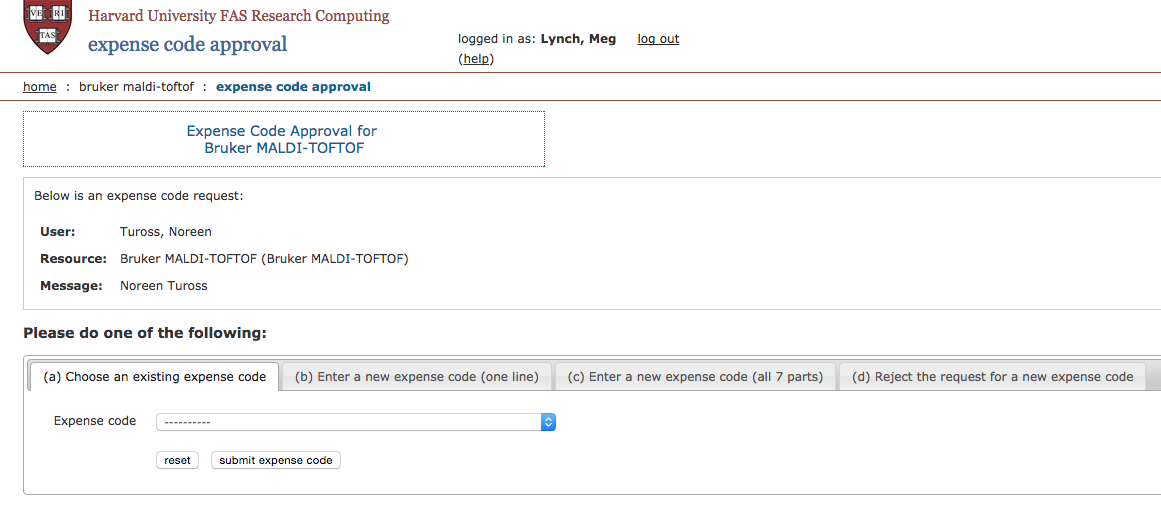
Selecting a code from a list
Any code that you have previously entered into Spinal or approved (for any user) will appear in a drop-down menu, along with the nickname you gave to that code. If you wish to reuse a code you used before, simply choose the code from the drop-down menu near the top of the page and click the “submit expense code” button as illustrated below:
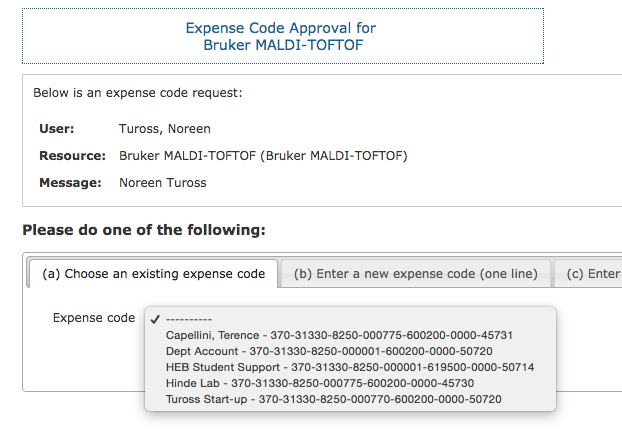
Entering a full 33-digit code
If you need to enter a new code, you can type or paste in the enter 33-digit code (with or without dashes) in the space provided. Type a nickname for the code, which will help you remember which grant the code corresponds to. Enter a start date and expiration date for the code. Researchers will only be allowed to use the code for reserving SPINAL instruments between those dates. (The default start date is today, but you can enter a future date in case the code doesn’t work yet. The default end date is one year from today.)
Also select the Lab Group associated with this code. If you administer only one group, it will be already selected. Otherwise if you administer more than one group, you much choose the correct one. If the desired group doesn’t appear in the select box, please advise the Spinal support staff by emailing to spinal@rc.fas.harvard.edu which will create a help ticket.
Once you have entered and approved a code for a given user and instrument, that code will appear in your “approved codes” dropdown list the next time you need to approve a code for a researcher. This will make it easy for you to use the same code for several users and/or instruments.
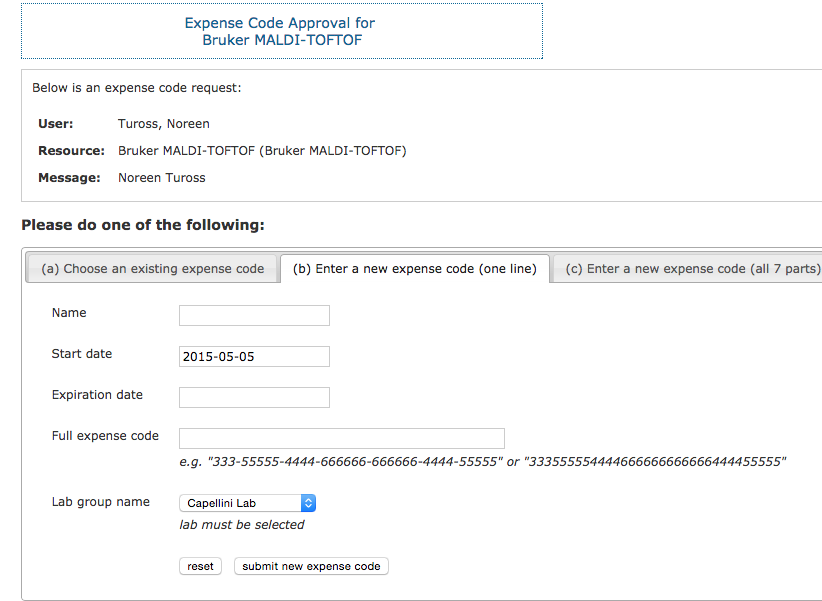
Entering a 33-digit code in pieces
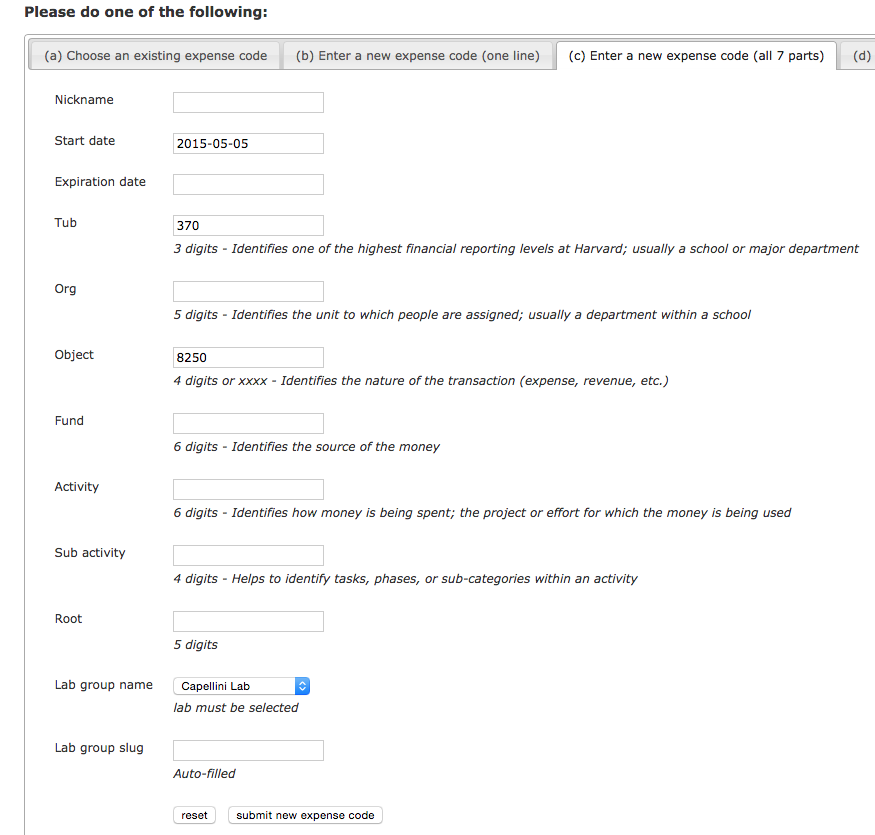
This is just like entering a full 33-digit code (see above), but you will enter each piece of the code (the tub, the root, etc.) in separate areas of the form. Note that you can enter “xxxx” in the object code. Some departments use this in case the lab admin isn’t sure which object code to use. Also, select the appropriate Lab Group associated with this code. If the group doesn’t appear in the select list, please contact spinal@rc.fas.harvard.edu to create a help ticket.
Rejecting a request
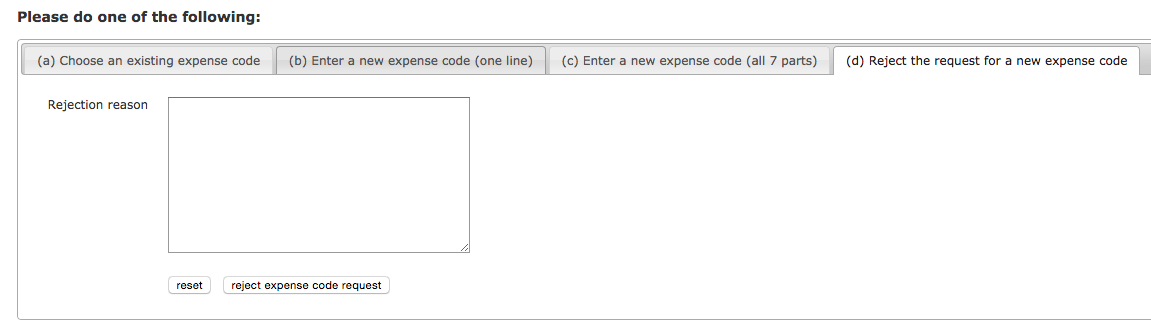
If you do not want to approve this user to use a 33-digit code, enter a rejection reason in the form at the bottom of the page. The researcher will get an email saying their request has been rejected, and they will not be able to sign up for the instrument.
You’re Done
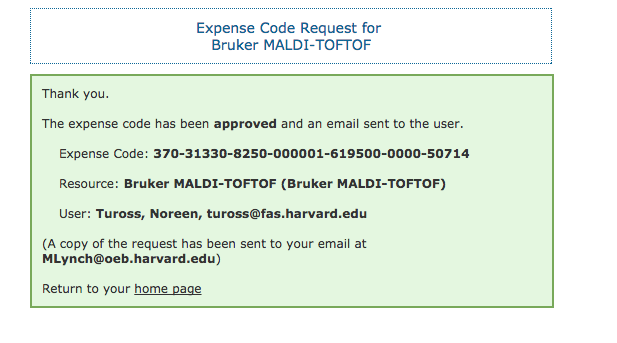
The system will send an email to the researcher confirming that they have been approved. The financial admin in charge of the instrument facility will be Cc’d. You will see a link to go back to your “home page,” where you can see if you have any other outstanding requests. If not, you can log out of the system.
Viewing Codes and Assignments
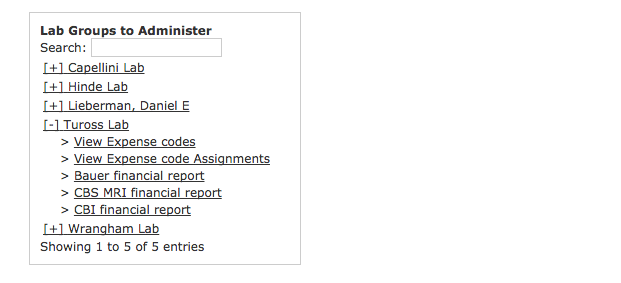
When you log into SPINAL, if you’re a lab admin for one or more groups, you will have a section of the page called “Lab Groups to Administer.” Each lab has links to view the lab’s expense codes, the lab’s expense code assignments showing which researchers can use which codes for which instruments, and financial reports with estimates for the current month’s spending for facilities like the Bauer Core. Here, The Tuross Lab is expanded with it’s available links.
Viewing Expense Codes
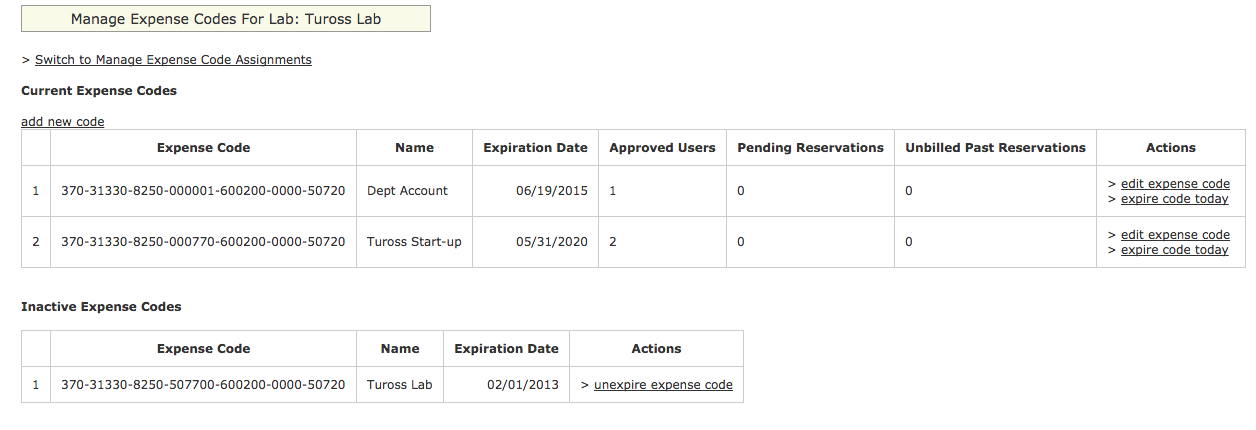
The top of the page shows currently active expense codes with the lab’s root that have been entered into SPINAL. For each code, it shows:
-
- The expense code
- The nickname you entered when you first added the code
- The expiration date of the code. (If the code will be expiring within a month, that row fo the table will be bright yellow.)
- How many users have been assigned that code
- How many reservations have been made in the future with that code
- How many reservations have been made with that code, which have already passed, but have not yet been invoiced
The bottom of the page shows expired expense codes.
There is a link to add a new expense code. It is entered by parts as illustrated below:
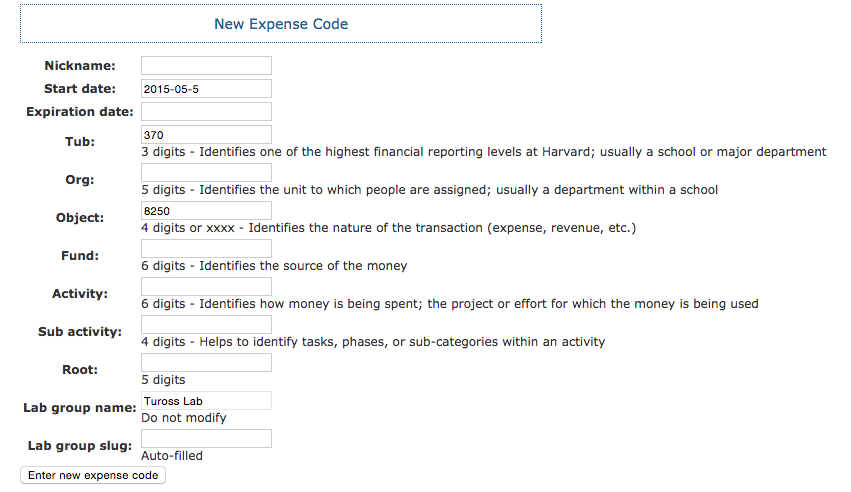
A new code can be entered in parts by filling in the Nickname, Expiration date together with the parts of the 33 digit code. The Lab group slug is not filled in. After the button “Enter new expense code” is pressed, the code is listed with the other active codes.
Any active (not expired) code may be edited but going to the link “edit expense code”. Normally this is done to change an expiration date.
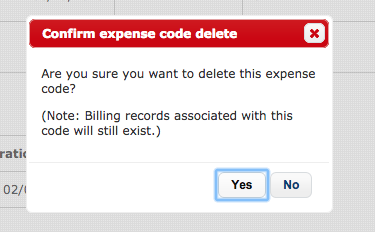
A code can be expired immediately by going to its link “expire code today”. A simple dialog appears asking you to confirm that the code should indeed be expired:
Viewing and Editing Expense Code Assignments
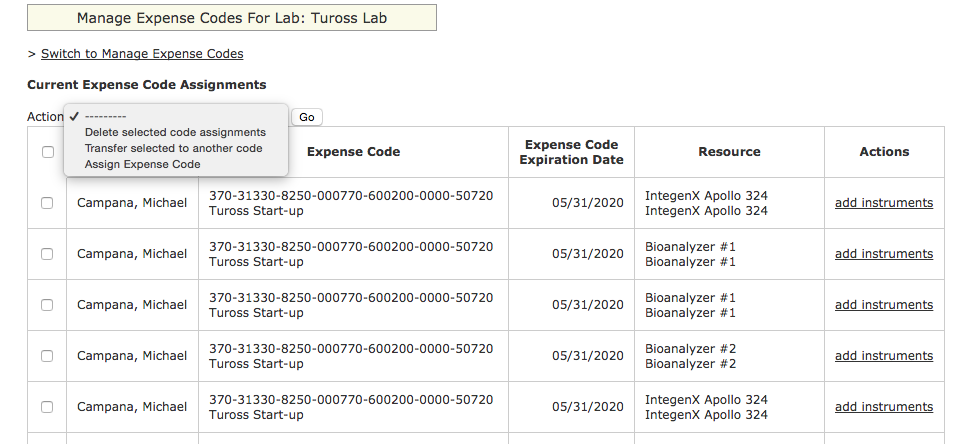
Assignments match a researcher and an expense code to an instrument. It is possible to select assignments and delete them or change to another expense code. If a researcher has an expense code assignment for a particular instrument it is possible to copy that assignment for another instrument by selecting the “add instruments” link, such as illustrated below:
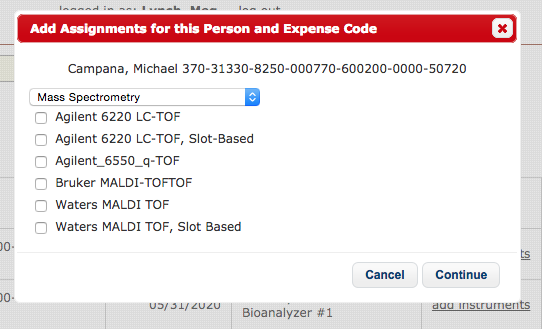
The dialog shows the researcher and expense code and below there is a select box that lists instruments by facility core. In the illustration, Mass Spectrometry is selected and it’s instruments are listed. Any number of instruments may be selected and the “continue” button will complete the action.
It is also possible to create an assignment by selecting “Assign Expense Code” from the drop down and clicking on the “go” button. A dialog will appear that asks for the researcher’s last name. You can type the first few letters of the last name and a bunch of selections will appear.
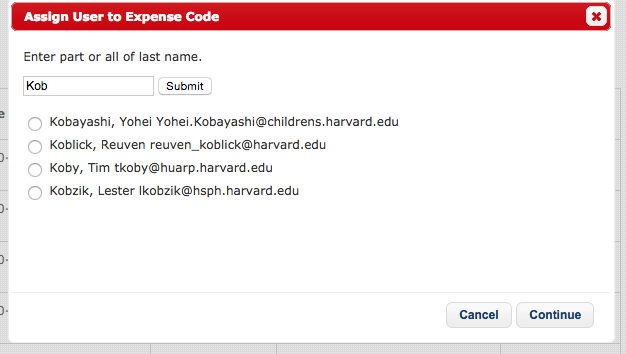
Select the correct name. A drop down list of expense codes and one for core facilities will appear. Select an appropriate code and facility. Select one or more instruments for that facility and click “Continue” to complete the operation.
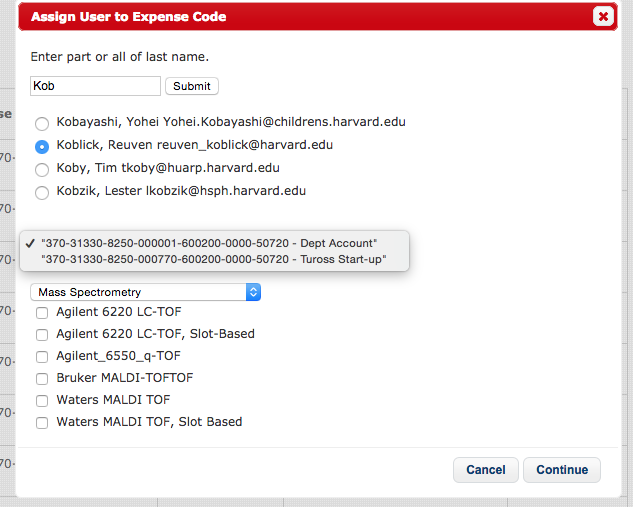
If you do not see an expense code, try entering it as a new code. Sometimes codes are entered and filed away under a different Lab Group. If you suspect that a code is already in the system but you can’t find it, please email spinal@rc.fas.harvard.edu.
Bookmarkable Section Links